
Documentation › Alerts and reports
Alerts and reports
Email a dashboard or chart on a schedule as a PDF, image or CSV, or get an email alert when a number crosses a threshold.
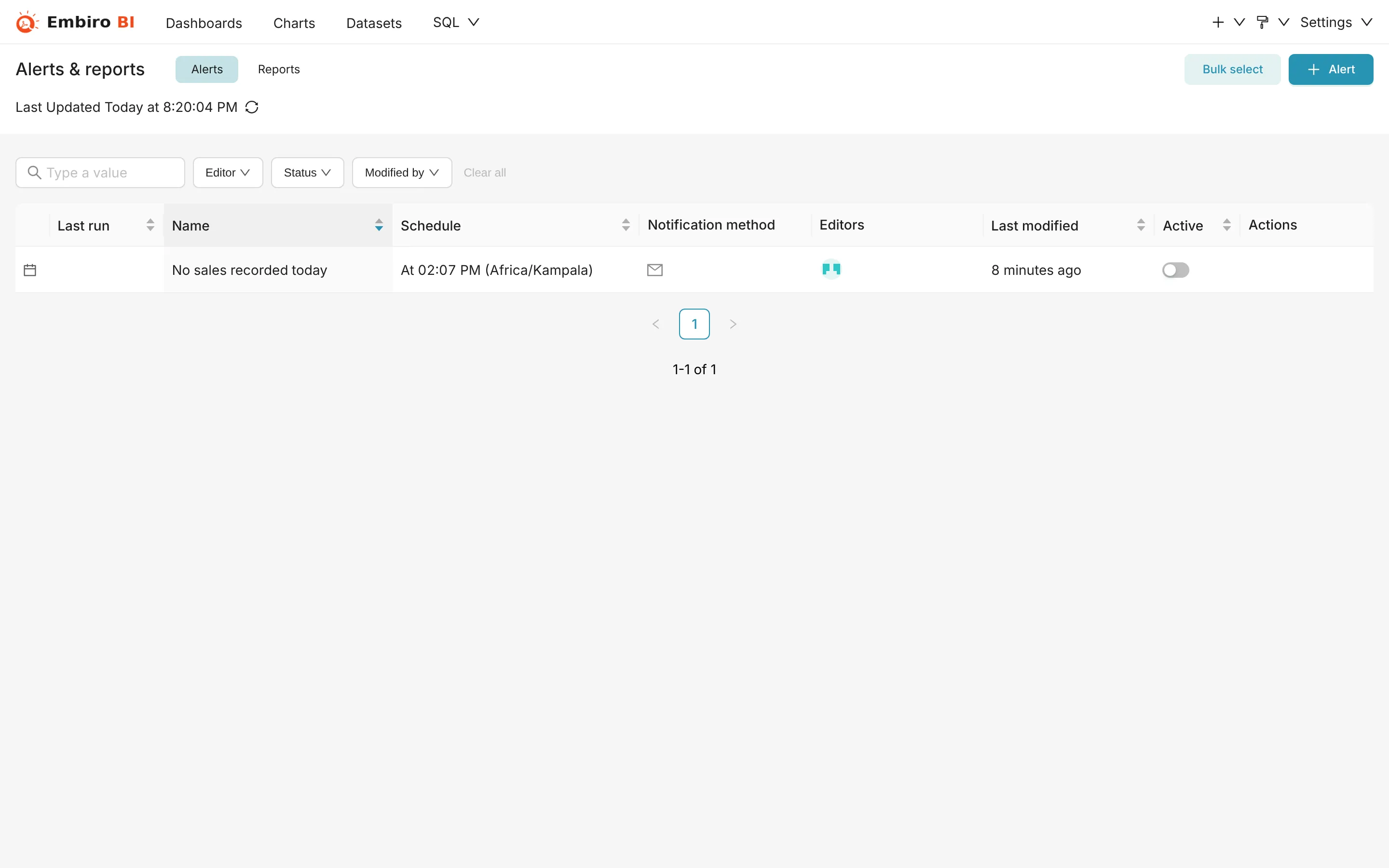
Reports email a dashboard or chart on a schedule, such as every Monday at 8:00. Alerts run a SQL check on a schedule and email only when the result crosses a threshold, such as "stock below 100" or "no sales recorded today".
Who can do this: Super Admin, Admin and Analysts. It is a plan feature ("Alerts & reports"). Recipients don't need an Embiro BI account to receive the email, but need one to open the links in it.
Schedule a report from a dashboard
- Open the dashboard → ⋯ → Email report → Set up an email report.
- Fill in:
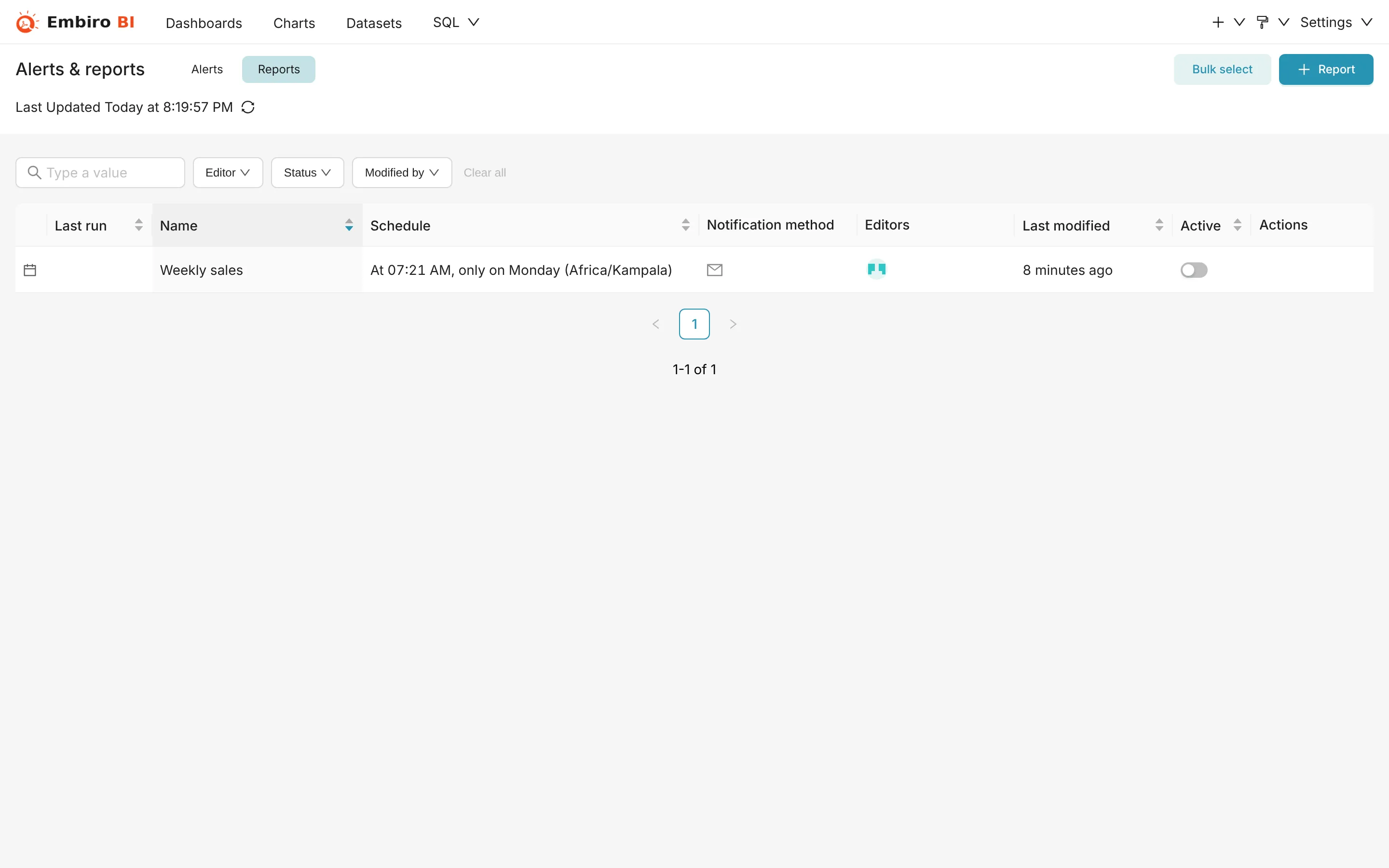
- Report name, such as Weekly sales;
- Description (optional, shown in the email);
- Schedule: every day, week or month at a time, or a custom schedule. Times are in the time zone you choose: pick Africa/Kampala for East African Time;
- Content format: Image (PNG) embedded in email, PDF attached, or just a link;
- the recipients' email addresses, separated by commas.
- Click Add.
The email comes from no-reply@embirobi.com with the dashboard (or its PDF), and an Explore in Embiro BI button.
From a chart: ⋯ → Manage email report works the same, and can also send the chart's data as CSV or as a text table.
Manage reports and alerts
Settings → Alerts & Reports lists every report and alert in your organization, with the Last run status. From there you can:
- switch one off and on with Active;
- edit it (pencil) or delete it;
- open its Execution log to see each run, when it was sent and any error.
Create an alert
- Settings → Alerts & Reports → Alerts tab → + Alert.
- Alert name, and the Owners who can edit it.
-
Alert condition:
- Database: the connection to check;
-
SQL Query: a query that returns one number, for example:
sql SELECT COUNT(*) FROM orders WHERE order_date = CURRENT_DATE -
Trigger Alert If...: a comparison such as < 1, > 1000, not null, or == 0. 4. Alert contents: the dashboard or chart to attach when the alert fires, and its format. 5. Schedule: how often to check, for example every hour from 9:00 to 18:00. Working timeout stops a slow query, and Grace period stops repeat emails for a while after an alert has fired. 6. Notification method: Email and the recipients. 7. Click Add.
Alert ideas:
| Alert | Query | Trigger |
|---|---|---|
| No sales today by 14:00 | SELECT COUNT(*) FROM orders WHERE order_date = CURRENT_DATE |
< 1 |
| Low stock | SELECT MIN(quantity) FROM stock |
< 100 |
| Big refund | SELECT MAX(amount_ugx) FROM refunds WHERE created_at > NOW() - INTERVAL '1 hour' |
> 5000000 |
| Overdue loans grew | SELECT COUNT(*) FROM loans WHERE days_overdue > 30 |
> 50 |
Good to know
- Reports always run fresh queries, ignoring the cache.
- Report screenshots are taken as the report's owner sees the dashboard, with its default filters.
- Google Sheets dashboards work in reports, as long as the connection has been authorized.
- If an email doesn't arrive, check spam first, then the report's Execution log.
Something unclear or missing? Tell us and we'll improve this page.