
Documentation › Dashboards
Embedding dashboards
Embed an Embiro BI dashboard in your own website or portal - a public embed with a copy-and-paste snippet, or a private embed with guest tokens from your server.
Embedding shows a live dashboard inside another website, such as your company website, a customer portal, or an Odoo or WordPress page. Visitors see the dashboard without signing in to Embiro BI.
Who can do this: Super Admin and Admins. It is a plan feature ("Embedded dashboards").
There are two ways to embed:
| Public embed | Private embed | |
|---|---|---|
| Who sees it | Anyone who opens the web page | Only the people your own system lets in |
| What you need | Paste a snippet into the page | Code on your server that asks Embiro BI for a guest token |
| Per-viewer data (row-level security) | No, everyone sees the same data | Yes, your server decides per viewer |
| Works on site builders (Odoo Online, Wix, WordPress) | Yes | Only with server-side code |
1. Turn on embedding
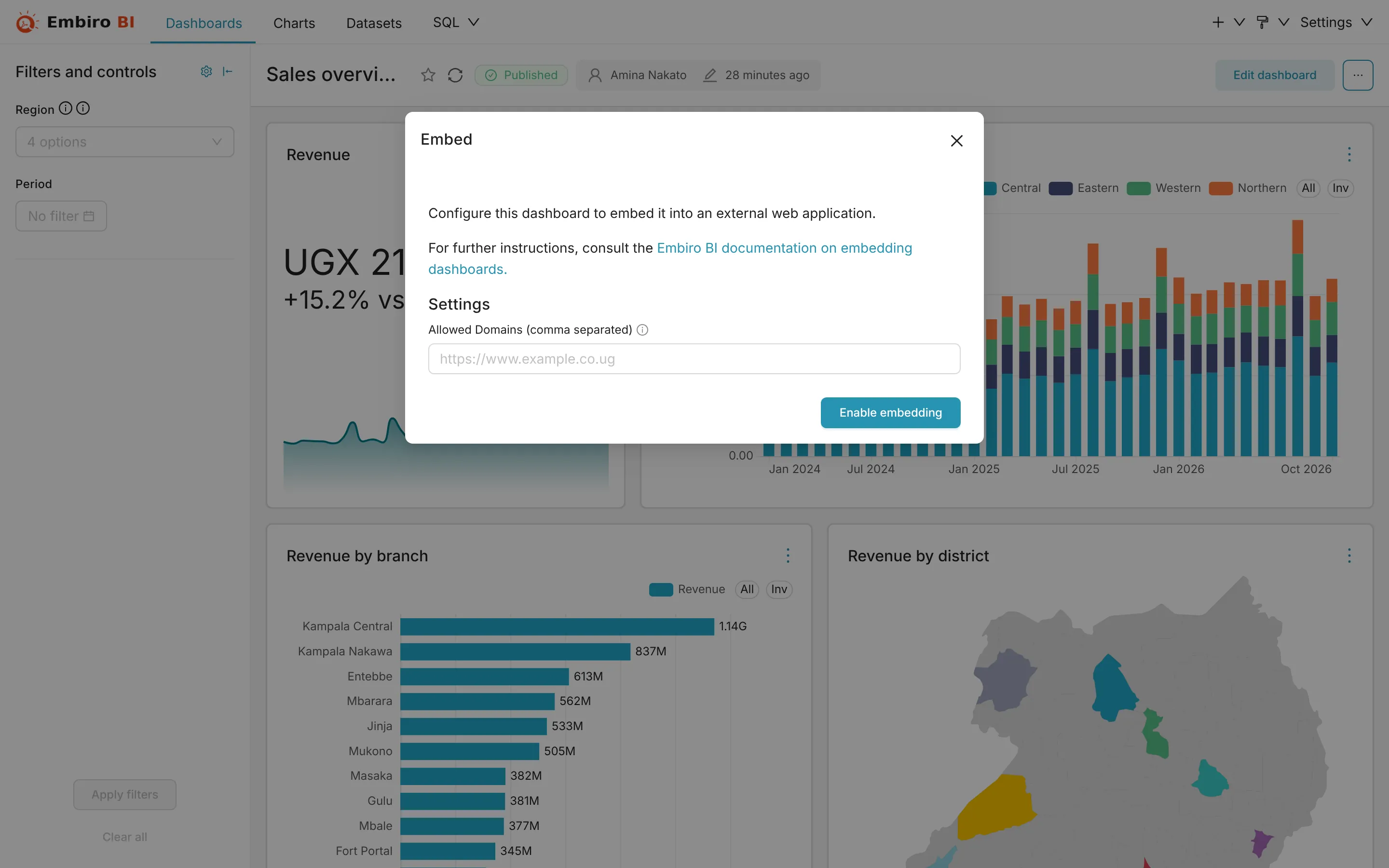
- Open the dashboard and click ⋯ → Embed dashboard.
- Under Allowed Domains (comma separated), enter the address of every site that will show the dashboard, with
https://, such ashttps://www.example.co.ug, https://portal.example.co.ug. No wildcards or paths. - Click Enable embedding.
The window shows the dashboard's embed ID. Only the listed sites can show the dashboard: browsers refuse to display it anywhere else.
2a. Public embed
- In the same window, switch on Public embed and save.
- Copy the snippet under Paste this into your web page.
- Paste it into your page, for example into an Embed Code or Custom HTML block.
The snippet creates a box on your page and loads the dashboard into it. It contains your dashboard's embed ID and your organization's address, so always copy it from the dialog.
To make the box taller or shorter, change the height value at the start of the snippet (900 pixels by default).
A public embed's data is public
Anyone can load the dashboard's data, including from outside a browser. Only embed dashboards publicly that you would be happy to publish. Switching Public embed off stops it immediately, including for visitors who already have the page open.
2b. Private embed
With a private embed, your web application asks Embiro BI for a short-lived guest token for each visitor, then passes it to the embedded dashboard. Your server can add row-level rules so each visitor sees only their own rows.
- Create an API key as a Super Admin or Admin. Keep it on your server, never in the web page.
-
On your server, request a guest token:
bash
curl -X POST https://your-address.embirobi.com/api/v1/security/guest_token/ \
  -H "Authorization: Bearer emb_YOUR_API_KEY" \
  -H "Content-Type: application/json" \
  -d '{
        "user": {"username": "customer-1042", "first_name": "Jane", "last_name": "Doe"},
        "resources": [{"type": "dashboard", "id": "YOUR-EMBED-ID"}],
        "rls": [{"clause": "customer_id = 1042"}]
      }'
The answer is
{"token": "..."}. The token is valid for 5 minutes, and the SDK asks for a new one when needed. 3. In your page, use the public snippet from the Embed dialog, but change the address insidefetchGuestTokento your own server endpoint, which returns that token.
Rules Embiro BI checks on every guest token:
- the dashboard (and every dataset in an
rlsrule) must belong to your organization; - your plan must include embedded dashboards, and your subscription must be active;
- the visitor's queries run with the database access of the person who turned on embedding, including their Google Sheets authorization. The
usernamein the token is only a label.
Size and look
- Give the container a fixed height: the dashboard scrolls inside it.
- To hide the title, chart menus or filter bar, add
dashboardUiConfig: { hideTitle: true, hideChartControls: true, filters: { expanded: false } },on the line aftermountPointin the snippet. - Charts load as they scroll into view, which keeps long dashboards fast.
Turn embedding off
⋯ → Embed dashboard → Deactivate. Pages that embed it stop showing it. You can turn embedding off on any plan, even after the feature has left your plan.
Troubleshooting
- The page shows "refused to connect" or a blank frame
- The page's address isn't in Allowed Domains. Add it exactly, with
https://and with or withoutwww., as the browser shows it. - "Guest token" errors in the browser console
- For a public embed, check Public embed is on. For a private embed, check your server's API key and that the embed ID (not the dashboard number) is in
resources. - Charts show "This organization's subscription has ended"
- Embedded dashboards stop when the subscription lapses. Renew on Settings → Subscription.
Something unclear or missing? Tell us and we'll improve this page.