
Documentation › Organization settings
Single sign-on (OIDC and SAML)
Let your team sign in to Embiro BI with Microsoft Entra ID, Google Workspace, Okta or any OIDC or SAML 2.0 identity provider, and enforce it.
Single sign-on (SSO) lets members sign in with their company account instead of a separate Embiro BI password. Your identity provider (IdP), such as Microsoft Entra ID, Google Workspace, Okta or OneLogin, checks who they are, including two-step verification, and people who leave your company lose access when their account is disabled.
Who can do this: the Super Admin. It is a plan feature ("Single sign-on (SSO) + SCIM").
Open Settings → Single sign-on. The page has four steps.
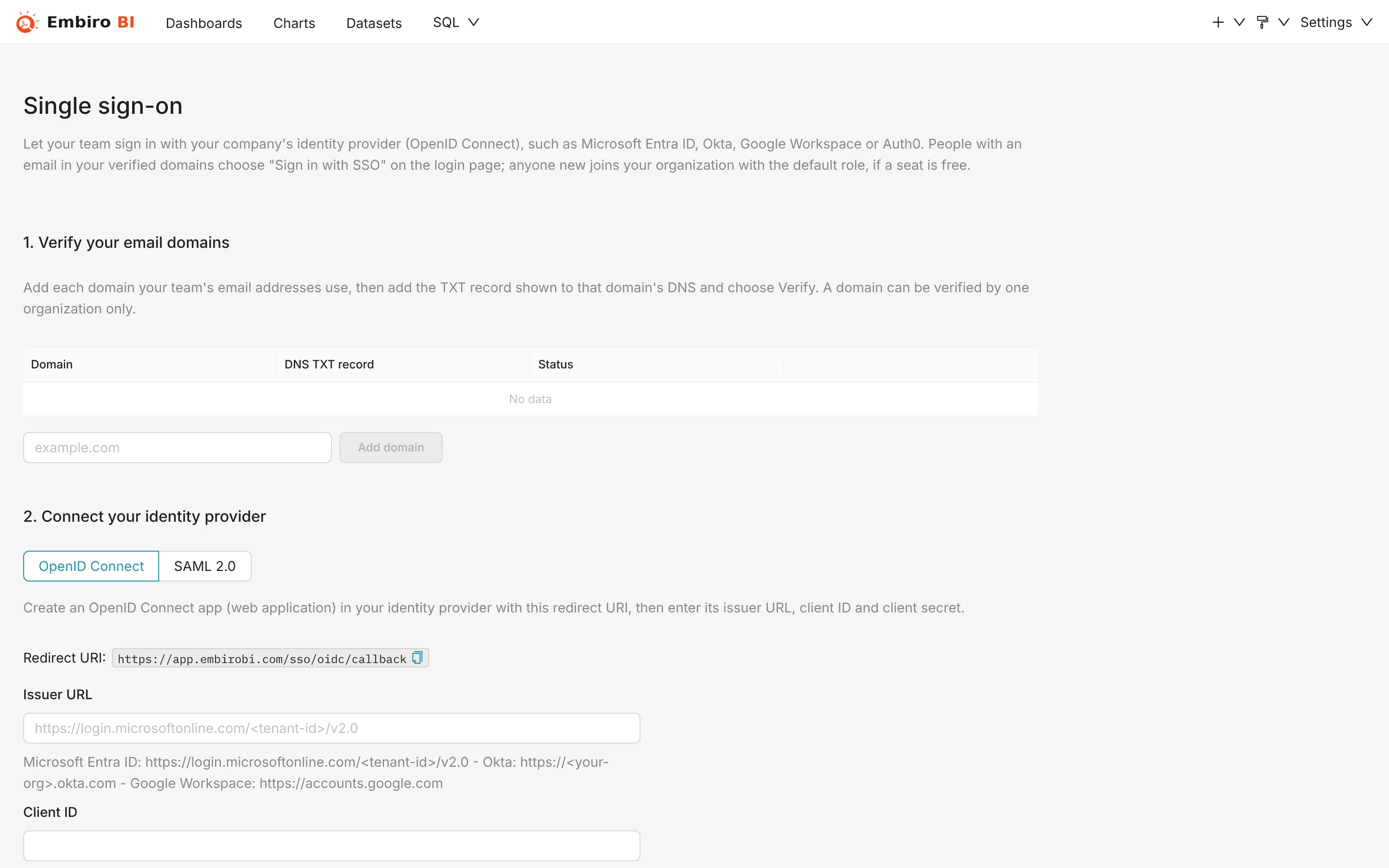
1. Verify your email domains
Embiro BI only signs in people whose email is in a domain you have proven you own.
- Type the domain, such as
example.co.ug, and click Add domain. - The page shows a DNS TXT record such as
embiro-verification=3f9a.... Add it as a TXT record on the domain at your DNS provider. - Click Verify. DNS changes can take a while to spread: try again later if it isn't found yet.
Repeat for each domain your staff use. Public email domains such as gmail.com or outlook.com can't be verified, and a domain can belong to only one organization.
2. Connect your identity provider
Choose the protocol your IdP supports: OIDC (OpenID Connect; simplest for Entra ID, Google and Okta) or SAML 2.0.
OIDC
-
In your IdP, create an application (a "web app" or "OIDC client") and register this redirect URI:
text https://app.embirobi.com/sso/oidc/callback -
Copy its Issuer URL, Client ID and Client secret into Embiro BI, and click Save. The secret is stored encrypted.
Where to find them:
| IdP | Issuer URL |
|---|---|
| Microsoft Entra ID | https://login.microsoftonline.com/<tenant ID>/v2.0 (App registrations → your app → Endpoints) |
| Google Workspace | https://accounts.google.com (Google Cloud console → APIs & Services → Credentials → OAuth client ID, type Web application) |
| Okta | https://<your-org>.okta.com (Applications → Create App Integration → OIDC, Web Application) |
SAML 2.0
- Switch the protocol to SAML 2.0. The page shows the values to enter in your IdP:
- Entity ID (Audience) and metadata URL;
- Reply URL (ACS URL):
https://app.embirobi.com/sso/saml/acs.
- In your IdP, create a SAML application with those values. Send the user's email address as the NameID (or as an
emailattribute). - Back in Embiro BI, give it the IdP's details: the Identity provider metadata URL, Or paste the metadata XML, or enter the Identity provider entity ID (Issuer), Sign-on URL (HTTP-Redirect) and Signing certificate by hand.
- Click Save.
Sign-ins must start from Embiro BI (the Sign in with SSO button). Starting from the IdP's app dashboard isn't supported. Encrypted assertions aren't supported either: leave assertion encryption off.
Default role
Choose the Default role, Business User or Analyst, for people who join through SSO for the first time.
3. Test, then switch it on
- Click Test sign-in. You sign in at your IdP in a new window, and Embiro BI reports whether it worked, without signing you in.
- When the test passes, switch SSO on. Your sign-in page shows Sign in with SSO.
- Optionally enforce SSO: members and anyone with an email in your domains can then only sign in with SSO. Password and Google sign-in are refused for them.
The Super Admin always keeps password sign-in, so you can get back in if your IdP has a problem. Changing the IdP details clears the test and turns enforcement off until you test again. Enforcing doesn't sign out people who are already signed in.
What happens when someone signs in
- Existing members are matched by email and signed in.
- New people with an email in a verified domain join your organization automatically with the default role, if a seat is free. If not, they see a message asking them to contact you.
- Every SSO sign-in appears in the Activity log.
Troubleshooting
- "Your email domain is not verified for this organization"
- The person's email isn't in a verified domain. Verify the domain, or check the email your IdP sends (in Entra ID the UPN may differ from the email).
- "No free seat"
- Buy more seats on Settings → Subscription, or remove someone.
- The test fails with an invalid signature or audience
- For OIDC, check the client ID and issuer match. For SAML, reload the metadata: the IdP may have a new signing certificate.
Something unclear or missing? Tell us and we'll improve this page.