
Documentation › SQL Lab
Writing queries
Explore your data with SQL in SQL Lab - pick a connection, browse tables, run queries in the background, view and export results.
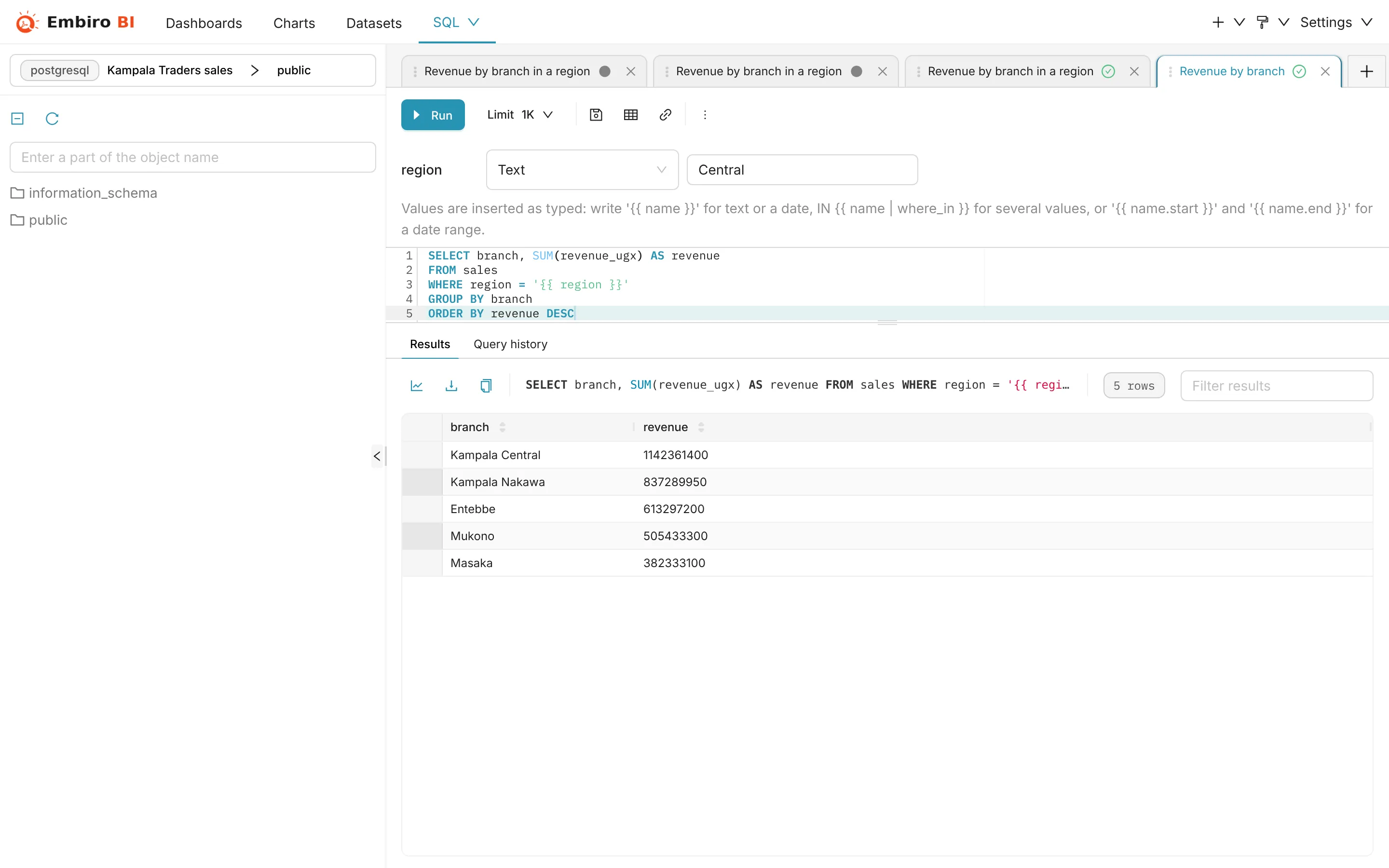
SQL Lab is Embiro BI's SQL editor. Use it to explore a database, check numbers, prepare data for a chart, or answer a one-off question.
Who can do this: Super Admin, Admin and Analysts. Business Users don't have SQL Lab.
Open SQL Lab
SQL → SQL Lab in the top menu, or + → SQL query.
The screen
- Left panel: choose the Database and Schema, then browse tables. Click a table to see its columns and a preview. The ⋯ next to a table can insert a
SELECTstatement for you. - Editor: write SQL. Each tab is a separate query, and tabs are kept between visits.
- Results: below the editor, after you run a query.
Run a query
-
Write your query, for example:
sql SELECT branch, SUM(revenue_ugx) AS revenue FROM sales WHERE order_date >= DATE '2026-01-01' GROUP BY branch ORDER BY revenue DESC -
Click Run or press Ctrl + Enter (⌘ + Enter on a Mac). To run only part of the editor, select it first.
- The results appear below.
Shortcuts: Ctrl + Space autocompletes table and column names, Ctrl + Shift + F formats the SQL, and Ctrl + Alt + R runs the query.
Queries run in the background
Every query runs on a separate worker, not in your browser's page, so you can keep working, open other tabs or even close the page while a long query runs. The Query history tab shows its progress, and the result waits for you when it's done. A query is stopped after 10 minutes: make it faster (filter more, aggregate in the database) or ask your database administrator for a summary table.
Results are kept for 7 days, then deleted.
How many rows
The Limit menu next to Run sets the most rows to return (1,000 by default). The maximum per result is 100,000 rows, or 1,000,000 rows on plans with "Up to 1,000,000 rows per SQL Lab result".
Past 100,000 rows, SQL Lab shows the first 10,000 rows on screen (display limit reached). Download the full result as CSV (see below).
Export results
Above the results:
- Download to CSV downloads the result. Large results are streamed straight from the database, up to your plan's row limit;
- Copy to clipboard copies the rows to paste into a spreadsheet;
- Create chart opens the chart editor on this result (see Saved queries and datasets from SQL).
Only reading, by default
SQL Lab runs SELECT queries. INSERT, UPDATE, DELETE, CREATE and other changing statements are refused unless the connection's Allow DML setting is on. Leave it off, and use a read-only login for extra safety.
Query history
SQL → Query history lists every query you ran, with its status, duration, rows and SQL. Click a query to open it in a new tab.
Something unclear or missing? Tell us and we'll improve this page.