
Documentation › Billing
Paying and renewing
Pay for Embiro BI with Mobile Money, choose 1, 6 or 12 months, get receipts and invoices, and what happens when a subscription ends.
Who can do this: the Super Admin. Admins can't see or change billing.
Subscribe or renew
- Open Settings → Subscription and click Choose a plan (during a trial) or Change plan / Renew.
- Choose a plan.
- Choose the Billing period: 1 month, 6 months or 12 months. Longer periods are discounted; the page shows the saving.
- Optionally add a consultant analyst under Add-ons.
- Check the Summary and Total today, then click Proceed.
Pay with Mobile Money
- Choose Mobile Money and enter your Mobile Money number (MTN or Airtel), such as
0772 123456. - Click Pay UGX ....
- Check your phone: a payment prompt arrives from ioTec, our payment provider. Enter your Mobile Money PIN to approve it.
- Keep the page open. It shows Payment successful as soon as the payment is confirmed, usually within a minute.
If the prompt doesn't arrive or you take too long, the page shows Payment did not complete. Nothing is charged; try again. Make sure the number has enough balance, including the network's charges.
Card payments are temporarily unavailable. For a bank transfer, contact us.
Receipts and invoices
- A receipt is emailed to your billing email after each payment.
- Settings → Payments (or Subscription → View invoices) lists every payment, with a PDF invoice to download.
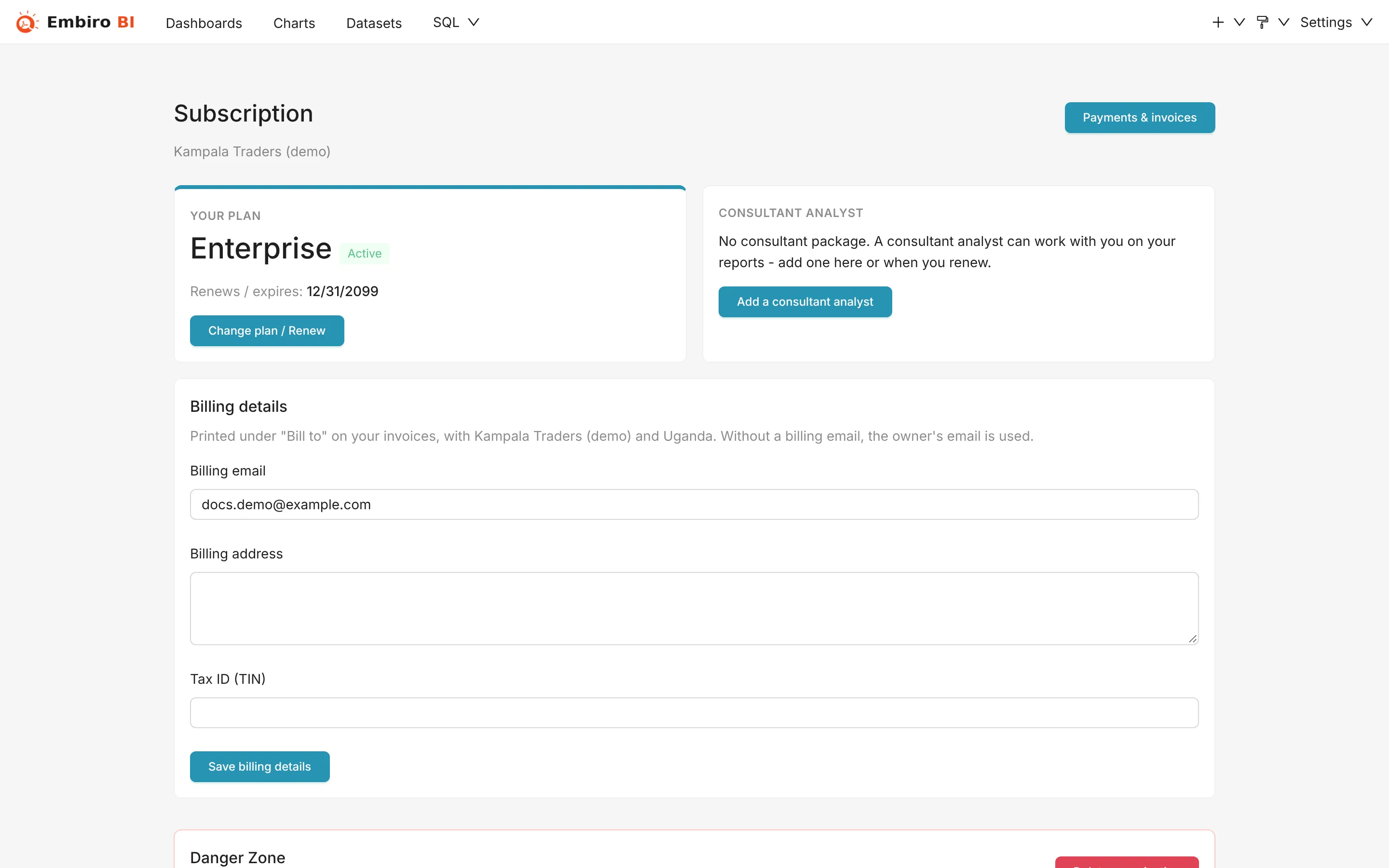
- To put your company's name, address or TIN on invoices, edit the billing details on Settings → Subscription.
When a subscription ends
You get reminder emails before the end date. If it isn't renewed:
- members who sign in see Subscription expired, with a button for the Super Admin to renew;
- scheduled reports, embedded dashboards, API keys and AI assistant connections stop;
- nothing is deleted: dashboards, charts, datasets and connections come back as soon as you pay.
Deleting your organization
Settings → Subscription → Danger Zone → Delete organization, then enter your password. This permanently deletes your organization's dashboards, charts, datasets, connections and members' access. It can't be undone. Your data in your own databases and Google Sheets isn't touched.
See also our refund policy.
Something unclear or missing? Tell us and we'll improve this page.