
Documentation › Getting started
Finding your way around
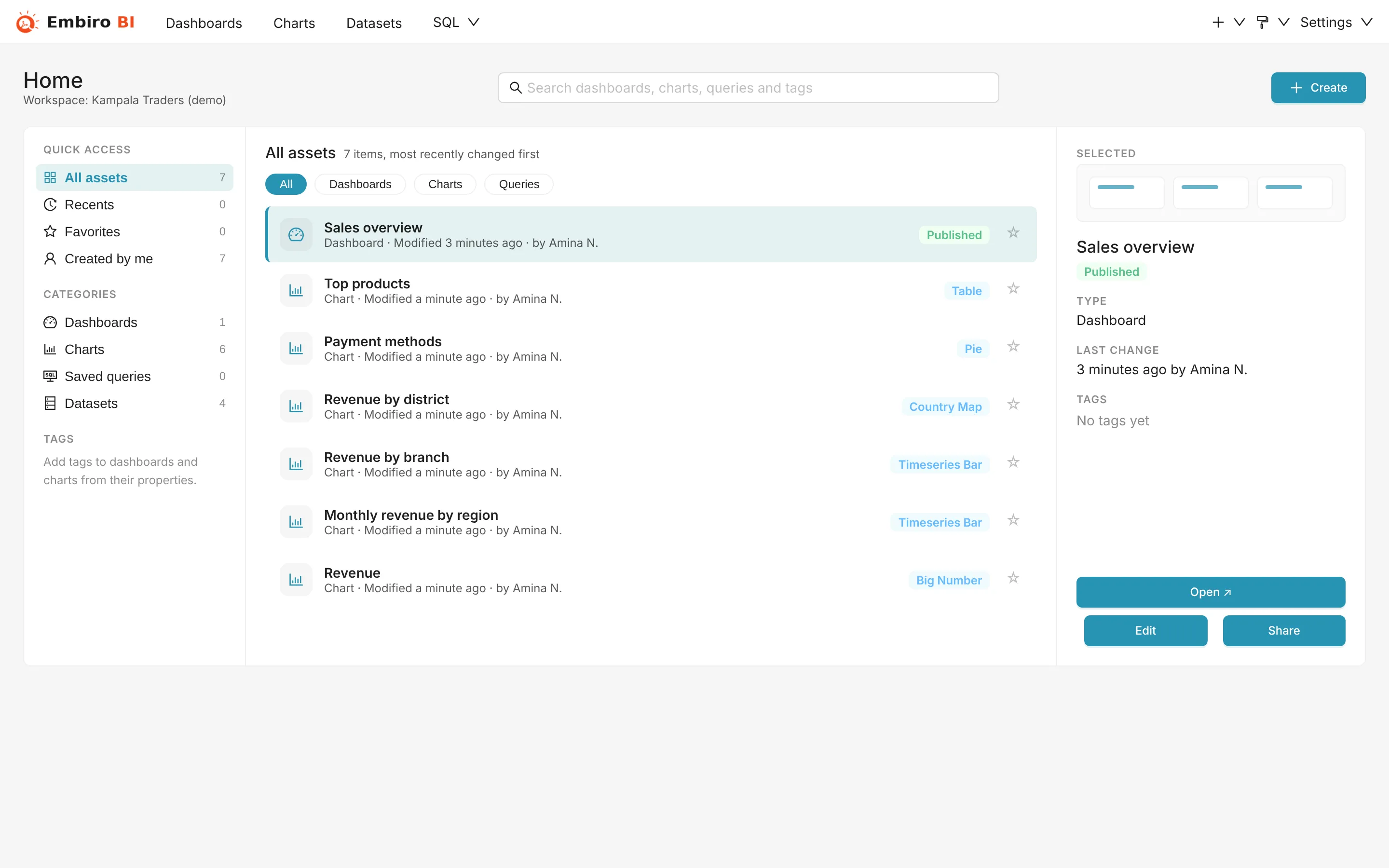
A tour of the Embiro BI screen - Home, the top menu, the + menu, Settings and the user menu.
Home
Home is where you land after signing in. It shows your organization's dashboards, charts and saved queries in one list:
- Search finds dashboards, charts and queries by name, dataset or tag.
- Quick access on the left switches between Favorites, Recents and Created by me. Under Categories you can show only dashboards, charts or saved queries. Tags lists your tags.
- Click an item to see its details on the right (owner, last change, dataset, the dashboards it is on), then Open, Edit or Share it.
- The star adds an item to your favorites.
A new organization sees three getting-started steps instead: Connect data, Create a chart and Build a dashboard. Business Users see only what has been shared with them, with no Create or Edit buttons.
The top menu
- Dashboards
- Every dashboard you can open, with filters for owner, status (published or draft), tags and favorites.
- Charts
- Every chart you can open, with its type, dataset and the dashboards it is on.
- Datasets
- The tables and queries charts are built on. See Working with datasets.
- SQL
- SQL Lab (the SQL editor), Saved queries and Query history. See Writing queries.
The + menu
The + button at the top right creates things:
- SQL query opens SQL Lab.
- Chart and Dashboard start a new one.
- Data → Connect database, Connect Google Sheet, Upload CSV to database, Upload Excel to database and Upload Columnar file to database.
Settings
Settings (top right) groups the organization's configuration. What you see depends on your role:
| Section | Pages |
|---|---|
| Manage | Team Members, Groups, Activity, API keys, AI assistant, Single sign-on, Custom domain, dbt, CSS Templates, Alerts & Reports, Tags |
| Billing | Subscription, Payments (Super Admin only) |
| Data | Database Connections |
Pages for features your plan doesn't include show what the feature does and how to get it.
The user menu
Your initials at the top right open the user menu:
- Info shows your profile, where you can also Reset my password.
- The organization picker appears if you belong to more than one organization.
- Create your company starts a new organization.
- About shows which release is running.
- Log out.
Something unclear or missing? Tell us and we'll improve this page.