
Documentation › Connecting data
Connecting a database
Connect PostgreSQL, MySQL, BigQuery and other databases to Embiro BI, test the connection and choose its settings.
A database connection tells Embiro BI how to reach your data. Once it is saved, Analysts can create datasets from its tables, query it in SQL Lab and build charts on it. Only your organization sees and uses it.
Who can do this: Super Admin, Admin and Analysts.
Supported sources
| Source | How you connect |
|---|---|
| PostgreSQL (including Supabase, Amazon RDS and Aurora, Azure, Google Cloud SQL, Neon) | Host, port, database, username, password |
| MySQL and MariaDB | Host, port, database, username, password |
| Google BigQuery | A service account's JSON key |
| Trino and Apache Hive | SQLAlchemy URI |
| Vertica | SQLAlchemy URI |
| Google Sheets | Sign in with Google. See Google Sheets |
| Jotform | Your Jotform API key. See Jotform |
| CSV, Excel and Parquet files | Uploaded into one of your databases. See Uploading files |
Need a database that isn't listed, such as Microsoft SQL Server or Snowflake? Tell us. We add drivers on request.
Connect a database
- Click + (top right) → Data → Connect database. You can also use Settings → Database Connections → + Database.
- Pick your database from the list, for example PostgreSQL.
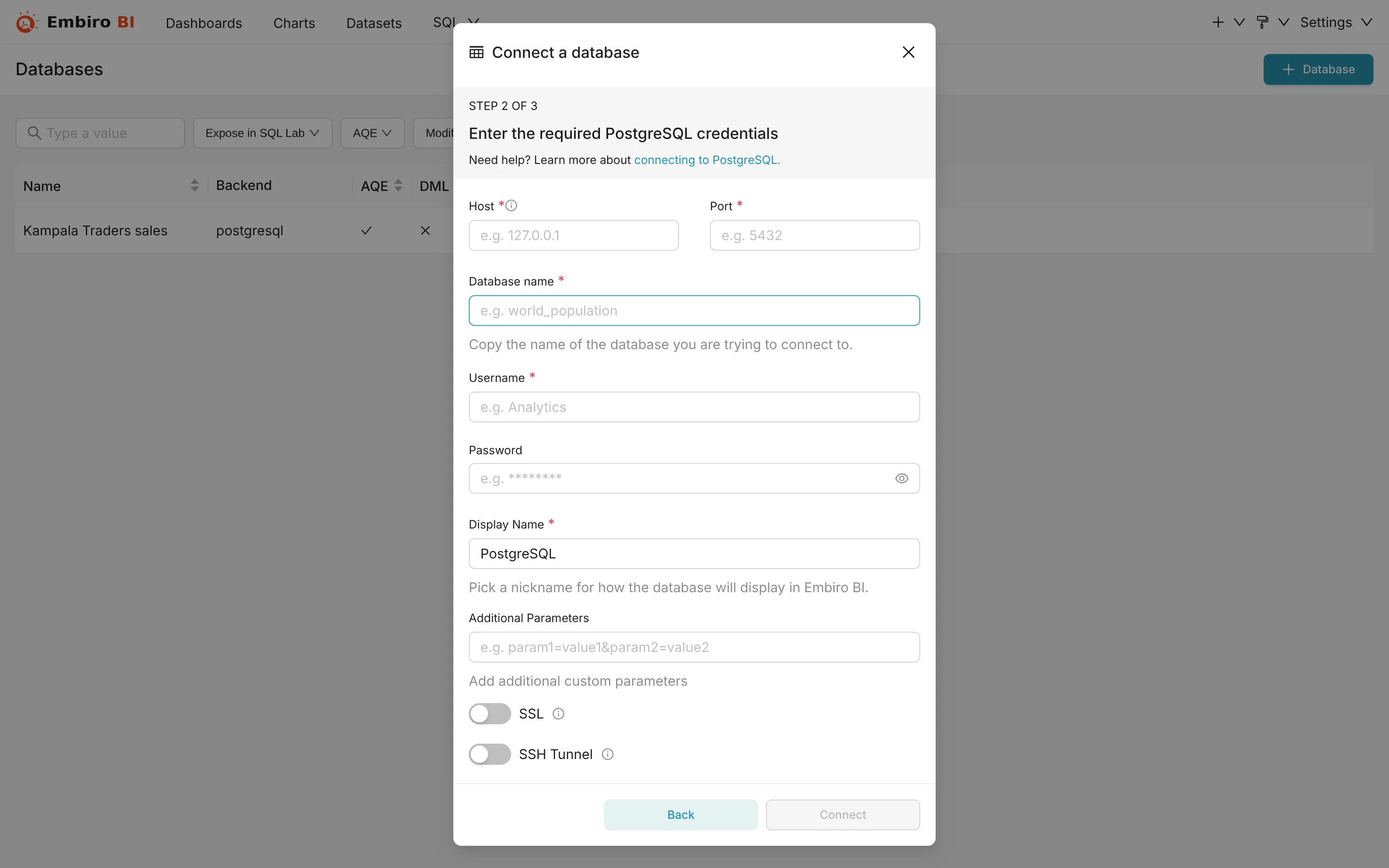
- Fill in the connection details:
- Host: the database server's public name or IP address, such as
db.example.co.ugoraws-0-eu-west-1.pooler.supabase.com. - Port:
5432for PostgreSQL,3306for MySQL. - Database name.
- Username and Password. Use a read-only login made for Embiro BI (see below).
- Display name: how the connection appears in Embiro BI, such as Sales database.
- SSL: switch it on if your database requires encrypted connections. Most cloud databases do.
- Host: the database server's public name or IP address, such as
- Click Connect. Embiro BI tests the connection before saving it.
- On the next screen you can adjust the advanced settings, then click Finish.
To connect with a SQLAlchemy URI instead of the form, click Connect this database with a SQLAlchemy URI string instead at the bottom of step 3. For example:
postgresql://embiro_reader:PASSWORD@db.example.co.ug:5432/sales
mysql://embiro_reader:PASSWORD@db.example.co.ug:3306/sales
Your database must be reachable from the internet
Embiro BI runs in the cloud, so it connects to your database over the internet from the address 13.49.213.196. A database that only listens on your office network, localhost or a private address such as 192.168.x.x or 10.x.x.x can't be reached directly. Allow that IP address in your firewall, or connect through an SSH jump host. See Firewalls and SSH tunnels.
Create a read-only login
Give Embiro BI its own database login that can only read. Then nothing done in Embiro BI can change your data, and you can see its activity in your database's logs.
PostgreSQL:
CREATE ROLE embiro_reader LOGIN PASSWORD 'choose-a-long-password';
GRANT CONNECT ON DATABASE sales TO embiro_reader;
GRANT USAGE ON SCHEMA public TO embiro_reader;
GRANT SELECT ON ALL TABLES IN SCHEMA public TO embiro_reader;
ALTER DEFAULT PRIVILEGES IN SCHEMA public GRANT SELECT ON TABLES TO embiro_reader;
MySQL:
CREATE USER 'embiro_reader'@'13.49.213.196' IDENTIFIED BY 'choose-a-long-password';
GRANT SELECT ON sales.* TO 'embiro_reader'@'13.49.213.196';
Advanced settings
Open a connection's settings (Settings → Database Connections → the pencil icon) → Advanced:
- SQL Lab
- Expose database in SQL Lab lets Analysts query it. Allow DML permits
INSERT,UPDATEandDELETEstatements; leave it off unless you need it. Asynchronous query execution is always on in Embiro BI: queries run in the background, so a long query doesn't block the page. - Performance
- Chart cache timeout overrides how long chart results from this connection are kept (one hour by default). See Caching and refreshing data.
- Security
- Allow file uploads to database lets members upload CSV and Excel files into it. Impersonate logged in user must be ticked for Google Sheets connections. See Google Sheets.
Editing and deleting a connection
Settings → Database Connections lists your organization's connections. Use the pencil icon to change one (for example a new password) and the bin icon to delete it. A connection that datasets still use can't be deleted until those datasets are removed.
The password is stored encrypted. When you edit a connection, the password field stays masked. Leave it masked to keep the current password.
Related
Something unclear or missing? Tell us and we'll improve this page.