
Documentation › Integrations
AI assistants (ChatGPT and Claude)
Connect ChatGPT, Claude, Claude Code, Cursor or VS Code to Embiro BI so your AI assistant can answer questions from your dashboards, charts and datasets.
You can connect your own AI assistant to Embiro BI and ask it questions in plain language: "Which branches grew fastest last quarter?", "Build a bar chart of revenue by region and add it to the Sales dashboard", "Explain what the Loan portfolio dashboard shows". The assistant uses Embiro BI's tools to list and read your dashboards, charts and datasets, query data and, if you are allowed, create charts and dashboards.
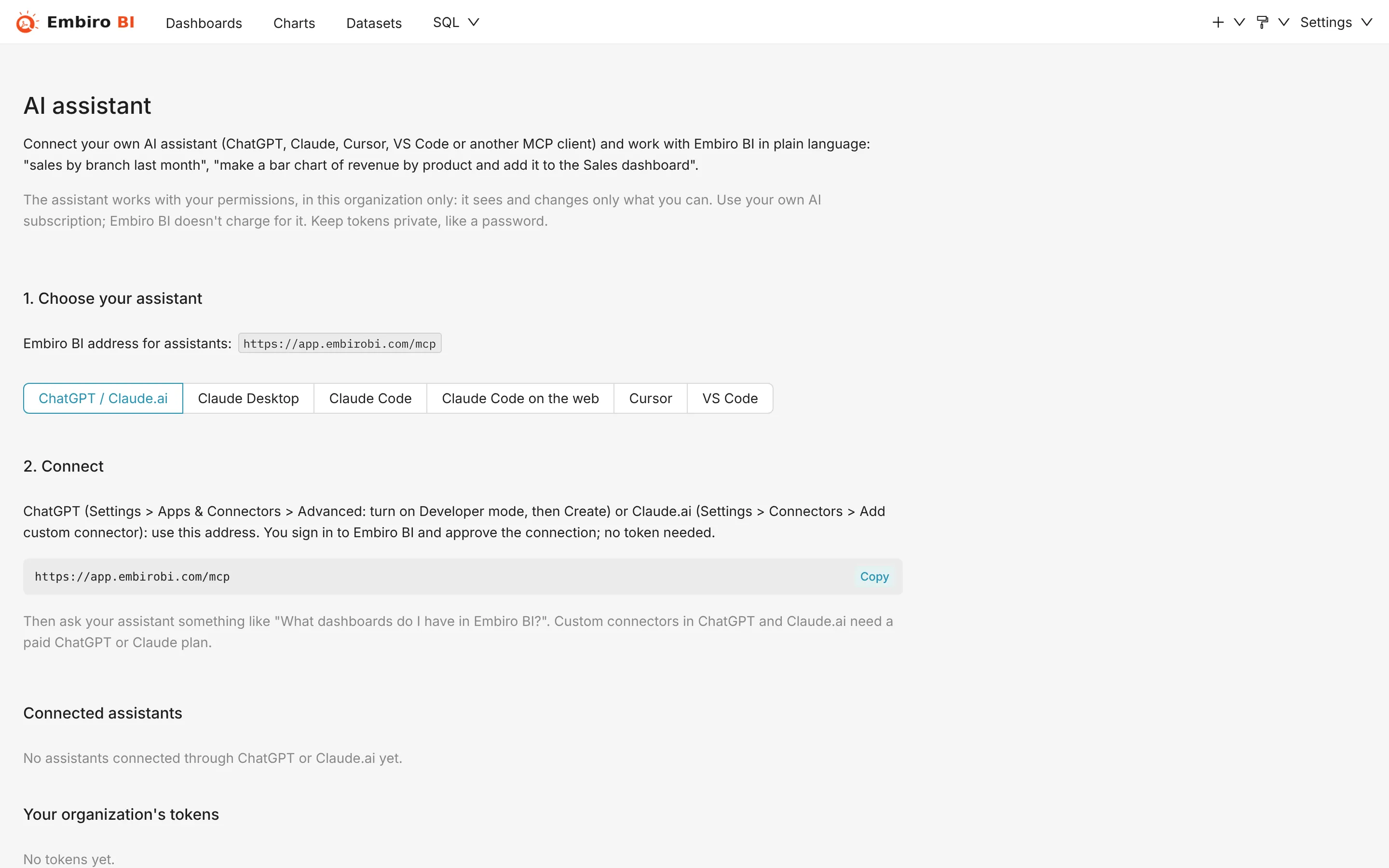
It works through MCP (Model Context Protocol), the open standard AI assistants use to connect to other apps. Embiro BI's MCP address is:
https://app.embirobi.com/mcp
Who can do this: every member, for their own assistant. It is a plan feature ("AI assistant access"). You use your own AI subscription (ChatGPT, Claude and so on): Embiro BI doesn't charge for the AI.
What the assistant can do
The assistant acts as you, in one organization, with your permissions:
| Your role | The assistant can |
|---|---|
| Business User | Read the dashboards, charts and datasets you can see; read their data only if your organization allows exports |
| Analyst, Admin, Super Admin | Read everything you can, query data, run SQL (if you have SQL Lab), create and edit charts, datasets and dashboards, save queries; read alerts and reports if your plan includes them |
It can never reach another organization's data, manage members or roles, or change settings.
Web assistants: ChatGPT and Claude.ai
Web assistants connect by signing you in to Embiro BI. No token to copy.
ChatGPT
- In ChatGPT, open Settings → Apps & Connectors → Advanced and turn on Developer mode.
- Back in Apps & Connectors, click Create.
- Name it Embiro BI, and enter the MCP address
https://app.embirobi.com/mcp. Authentication: OAuth. - Click Create. ChatGPT opens Embiro BI.
Claude.ai
- Open Settings → Connectors → Add custom connector.
- Name it Embiro BI and enter
https://app.embirobi.com/mcp. - Click Add, then Connect.
Then, in both:
- If asked, enter your organization's address (such as
kampala-traders), and sign in as usual. - Embiro BI shows which assistant is asking and which organization it will work in. Click Approve.
- You're back in the assistant, connected. Enable the connector in a chat (in Claude, from the tools menu) and ask away.
The connection stays signed in for up to 60 days of use. Settings → AI assistant lists your connected web assistants, with Disconnect to end one at once.
Desktop and coding assistants
Claude Desktop, Claude Code, Cursor and VS Code connect with a personal token.
- Open Settings → AI assistant and click Create token. Give it a name, such as My laptop.
- Copy the token now. It is shown only once.
- Choose your assistant on the same page: it shows the exact configuration with your token filled in. The configurations look like this:
- Claude Code (terminal)
bash claude mcp add --transport http embiro-bi https://app.embirobi.com/mcp \ --header "Authorization: Bearer YOUR_TOKEN"- Claude Desktop
-
Settings → Developer → Edit Config, add to
claude_desktop_config.json(needs Node.js), then restart Claude:json { "mcpServers": { "embiro-bi": { "command": "npx", "args": ["-y", "mcp-remote", "https://app.embirobi.com/mcp", "--header", "Authorization:${AUTH}"], "env": { "AUTH": "Bearer YOUR_TOKEN" } } } } - Cursor
-
Add to
~/.cursor/mcp.json:json { "mcpServers": { "embiro-bi": { "url": "https://app.embirobi.com/mcp", "headers": { "Authorization": "Bearer YOUR_TOKEN" } } } } - VS Code (with Copilot)
-
Add to
.vscode/mcp.json:json { "servers": { "embiro-bi": { "type": "http", "url": "https://app.embirobi.com/mcp", "headers": { "Authorization": "Bearer YOUR_TOKEN" } } } } - Claude Code on the web
-
Put this
.mcp.jsonin a repository of its own (not your project's), setEMBIRO_MCP_TOKENto your token in the cloud environment's settings (a personal environment, not a shared one), and start a new session on that repository:json { "mcpServers": { "embiro-bi": { "type": "http", "url": "https://app.embirobi.com/mcp", "headers": { "Authorization": "Bearer ${EMBIRO_MCP_TOKEN}" } } } }
Treat the token like a password: never commit it to a repository or paste it in a chat. Revoke it on Settings → AI assistant if it leaks or you no longer need it. A token stops working when you leave the organization or the plan loses the feature.
Asking good questions
- Name the dashboard, chart or dataset: "In the Sales dataset, what was revenue by branch in October?"
- Ask it to show its working: "Which SQL did you run?"
- Ask for a chart to keep: "Create a line chart of monthly revenue for 2026 and save it as 'Revenue trend'." Charts it saves appear in Embiro BI like any other.
- Check important numbers against the dashboard before acting on them. AI assistants can misread a question.
Troubleshooting
- The assistant sees only a "health_check" tool, or none
- Disconnect and reconnect the connector so it loads the current tool list.
- "Unauthorized" or the connection keeps asking to sign in
- For a token, check it was copied whole, with
Bearerin front. For web assistants, disconnect and connect again. - "AI assistant access is not included in your plan"
- Your organization's plan doesn't include it. See Plans and features.
- Too many requests
- Each connection may make 120 requests a minute. Wait a moment and ask again.
Something unclear or missing? Tell us and we'll improve this page.