
Documentation › Team and access
Inviting and managing members
Invite colleagues to your Embiro BI organization, choose their role, manage seats, reset passwords and remove members.
Who can do this: Super Admin and Admins. Only the Super Admin can invite or manage Admins.
Invite a member
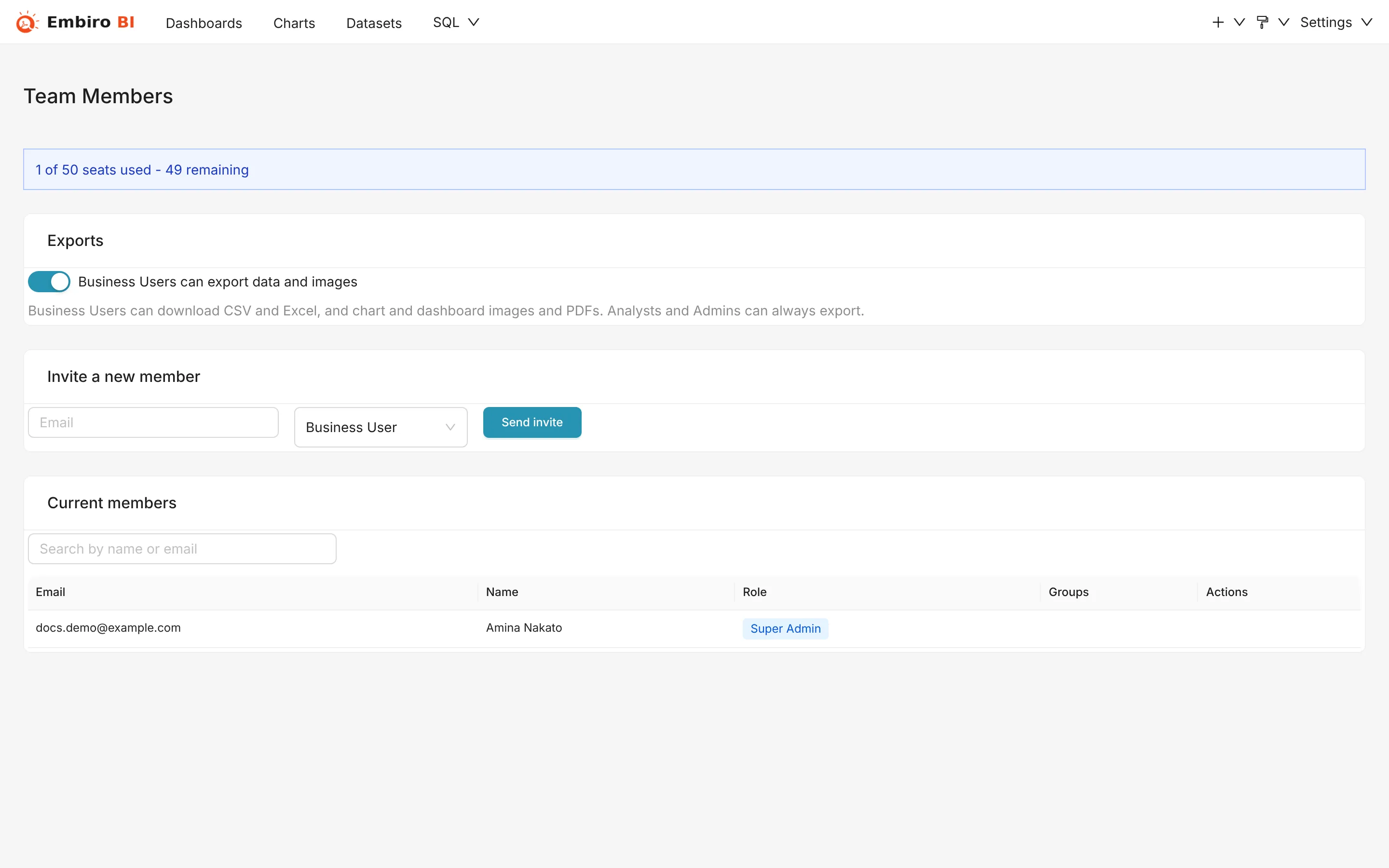
- Open Settings → Team Members.
- Under Invite a new member, enter their email address and choose a role: Analyst or Business User. The Super Admin can also choose Admin.
- Click Send invite.
They get an email from no-reply@embirobi.com with a link. The link works for 7 days. When they open it, they choose a name and password and land in your organization at its address.
Pending invitations are listed under Pending invitations, where you can Revoke one, for example if you made a typo. To resend an expired invitation, revoke it and invite again.
Single sign-on
If your organization uses single sign-on, you don't need to invite people with an email in your verified domain: they join automatically the first time they sign in with SSO, with the default role you chose. With SCIM, your identity provider adds and removes them for you.
Seats
Each plan includes a number of seats: one seat per member, including the Super Admin. Pending invitations count too, so you can't send more invitations than you have free seats.
When you run out, the invitation form offers to buy more seats. Only the Super Admin can buy seats, on Settings → Subscription. Free trials have 3 seats.
Consultants from an add-on don't use your seats.
Change a member's role
On Current members, use the member's Role menu:
- Analyst ⇄ Business User: Super Admin and Admins;
- to or from Admin: the Super Admin only.
The change takes effect on the member's next page load.
Reset a member's password
Click Reset password next to a member. They get an email with a temporary password and are asked to choose a new one when they sign in. Members can also reset their own with Forgot your password?. See Passwords and account security.
Put members in groups
Business Users see only what their groups allow. Click Groups next to a member to tick the groups they belong to, or manage it from Settings → Groups. See Groups and data access.
Remove a member
Click Remove next to a member and confirm. They can no longer sign in to your organization, and their seat is free at once. Their charts and dashboards stay in the organization. Their personal API keys and AI assistant connections stop working.
Business User exports
Settings → Team Members also holds the switch that lets Business Users download data, images and PDFs. See Export controls.
Something unclear or missing? Tell us and we'll improve this page.